The calendar
See everything booked and logged by day, week or month, add sessions and other time, and handle online booking requests.
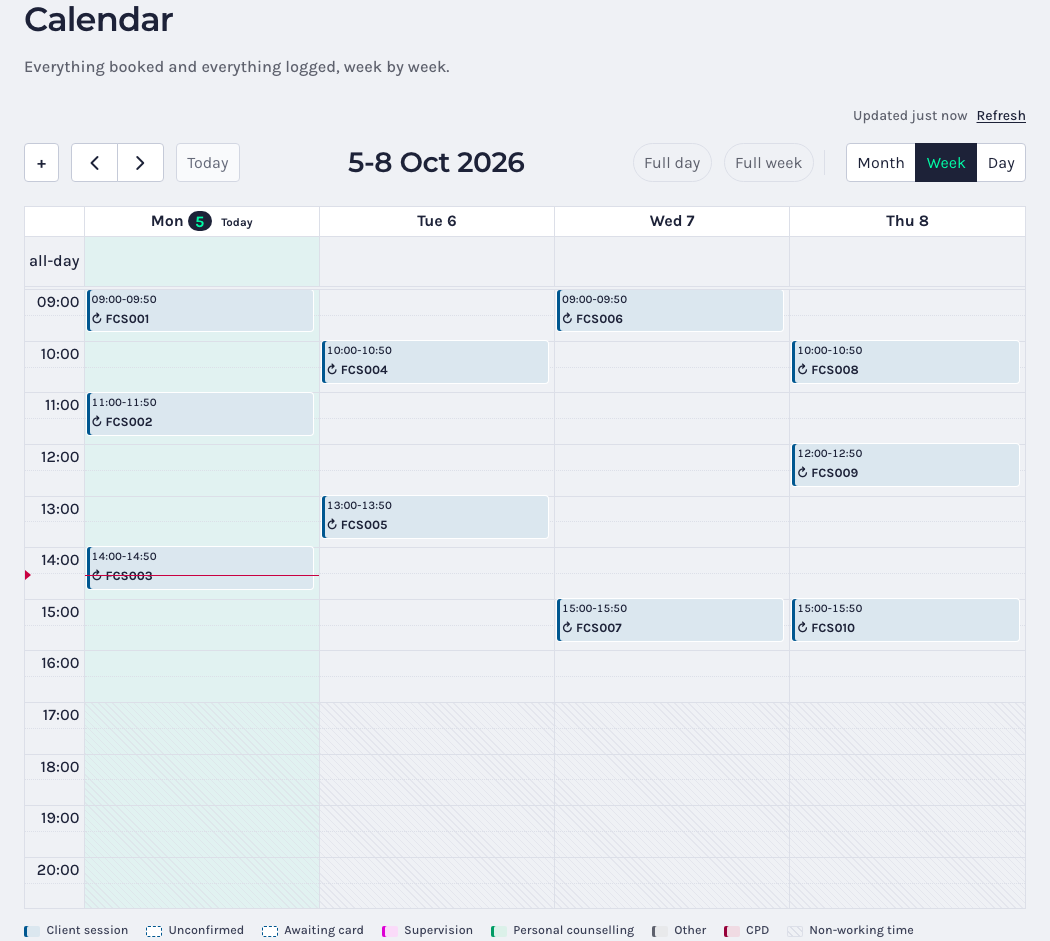
Calendar shows your client sessions, supervision, personal counselling, CPD and anything else you’ve put in your diary.
Moving around
- Use the arrows to go back or forward, and Today to come back.
- Choose Month, Week or Day. On a phone the calendar opens on the day.
- The calendar shows your working days and hours from Settings. Full week shows the other days too, and Full day shows the other hours.
The key at the bottom explains the colours: client sessions, unconfirmed bookings, sessions awaiting a card, supervision, personal counselling, other time, CPD, and non-working time.
Adding something
Press +, or click an empty slot. Choose what it is:
- Client session: book or log time with a client.
- Supervision: counts towards your supervision hours.
- Personal counselling: your own therapy, private to you.
- Other activity: training, admin or other time. It blocks the time but isn’t counted.
- CPD: counts towards your CPD hours.
Fill in the details and press Save.
To keep time free, for example a holiday or an afternoon off, add it as Other activity. Clients booking online are never offered time that’s already in your diary.
After a session
Click a session that has finished. It asks whether it went ahead: choose Attended, Did not attend or Late cancellation, then Confirm. For an online session, Join opens the meeting link.
Online booking requests
If clients can book online (Settings, Online booking), a request holds its slot on your calendar. Click it to Approve, Suggest another time or Decline. A new client’s request offers Approve and add client.
Whether requests wait for you or are confirmed straight away is your choice, separately for new and existing clients, in the Online booking settings.